Evaluate your agent using externally available benchmarks via the web UI
In this tutorial, we will learn how to take a benchmark that came from an external source, rather than from MorganaBench, and evaluate your agent on this benchmark using MorganaBench. Through this experience, we will also learn about using the MorganaBench SDK to write files in the format our system expects as input.
Overview
Evaluating an agent on externally available benchmarks involves the following key steps:
- Run your agent and write its input and output to a file in MorganaBench format.
- Create an evaluation on MorganaBench by importing the file and selecting metrics.
- Inspect the results when MorganaBench is done evaluating.
In this tutorial, we will use the watsonxDocsQA dataset from IBM Research, which comprises both a corpus and a corresponding benchmark. We will build a simple agent grounded in the corpus and use MorganaBench to evaluate its responses to the queries in the benchmark.
Setup
First, install the dependencies needed for the tutorial, assuming that you have a Python virtual environment and use pip.
# for importing the dataset
pip install pandas pyarrow huggingface-hub

# for building our agent
pip install llama-index
pip install llama-index-embeddings-bedrock # <-- or another embedding provider
pip install llama-index-llms-bedrock-converse # <-- or another LLM provider

# for writing output in MorganaBench format
pip install morgana-bench-SDK
Build the agent and run it on the benchmark
First, we will import the data into a corpus subdirectory in our project. Here is a short script to do this:
import pandas as pd
import os

# create corpus dir
os.makedirs("./corpus", exist_ok=True)

# load the corpus from HuggingFace
url = "hf://datasets/ibm-research/watsonxDocsQA/corpus/train-00000-of-00001.parquet"
corpus_df = pd.read_parquet(url)

# write each document to a `corpus/<doc_id>.md` file
for row in corpus_df.itertuples(index=False):
    filename = "corpus" + os.sep + row.doc_id + ".md"
    with open(filename, "w") as f:
        print(row.md_document, file=f)
Now we run the script:
At this point, you should see a subdirectory namedcorpus with the corresponding markdown files. Let's verify:
You should see output like:
00205C92C52FA28DB619EE1F9C8D76FE8564DB88.md
0093065541AA4C3E90E47E3ACE89596155EA1735.md
0108F00736882AC35E3C56CD3CE0D91BCB5798A8.md
Now let's inspect one of them:
You should see output like:
# History node #

History nodes are most often used for sequential data, such as time series data\.

They are used to create new fields containing data from fields in previous records\. When using a History node, you may want to use data that is presorted by a particular field\. You can use a Sort node to do this\.

<!-- </article "role="article" "> -->
Next, we build our LlamaIndex agent. We use AWS Bedrock for document embeddings and the LLM, which you can replace if you wish to use a different provider.
import sys

from llama_index.core import SimpleDirectoryReader, VectorStoreIndex
from llama_index.core.agent.workflow import FunctionAgent
from llama_index.core.tools import QueryEngineTool
from llama_index.embeddings.bedrock import BedrockEmbedding
from llama_index.llms.bedrock_converse import BedrockConverse

def build_agent():
    # define embedder and LLM
    embed_model = BedrockEmbedding(
        model_name="amazon.titan-embed-text-v2:0",
        embed_batch_size=1,
        num_workers=64,
    )
    llm = BedrockConverse(model="global.anthropic.claude-haiku-4-5-20251001-v1:0")

    # create a tool that searches in our corpus
    print("Reading directory corpus into an in-memory index", file=sys.stderr)
    docs = SimpleDirectoryReader("./corpus", recursive=True).load_data()
    index = VectorStoreIndex.from_documents(docs, use_async=True, embed_model=embed_model)
    search_corpus_tool = QueryEngineTool.from_defaults(
        query_engine=index.as_query_engine(llm=llm, similarity_top_k=5),
        name="search_corpus",
        description="Search the corpus.",
    )

    # create an agent that uses this tool. Each `run` gets a fresh context, so one agent
    # instance serves any number of concurrent examples.
    print("Initializing agent", file=sys.stderr)
    return FunctionAgent(
        tools=[search_corpus_tool],
        llm=llm,
        system_prompt=(
            'Always either answer concisely based on the corpus, or respond with "I don\'t know".'
            ' Always answer directly to the query, and avoid a preamble like "according to the corpus"'
            ' or "according to the knowledge base".'
        ),
    )
build_agent function defined above in our script that runs the agent on the benchmark. Before showing the script, we will first
become familiar with the MorganaBench SDK classes used to produce data that MorganaBench can consume. Paste the following code snippet into your
terminal:
python << 'EOF'
import mb.entities as mbe
example = mbe.Example(
    inputs=mbe.Inputs(messages=[
        mbe.ChatMessage.user("Who was the King of England in 2025?")
    ]),
    expectations=[mbe.ExpectedResponse(response="King Charles III")],
    outputs=mbe.Outputs(response="We serve no kings")
)
print(example.model_dump_json(indent=2, exclude_none=True))
EOF
{
  "inputs": {
    "messages": [
      {
        "role": "user",
        "content": "Who was the King of England in 2025?"
      }
    ]
  },
  "expectations": [
    {
      "expect": "response",
      "response": "King Charles III"
    }
  ],
  "outputs": {
    "response": "We serve no kings",
    "trace": []
  }
}
Example object is divided into three parts: inputs, containing the agent's input; expectations, containing what we expect the agent
to produce (ground truth); and outputs, containing the agent's actual output. See the SDKs and Data Formats page for more information.
In practice, MorganaBench accepts a file consisting of JSON Lines (NDJSON), which means that we print each Example object on one line and do not supply the indent=2
argument to the JSON-dumping function. So, without further ado, here is the script that reads the Q&As from the HuggingFace dataset,
runs the agent, and prints Example objects.
import asyncio
import mb.entities as mbe
import pandas as pd

from agent import build_agent # <-- the agent we just built

async def run_agent_on_benchmark():
    agent = build_agent()
    benchmark = pd.read_parquet("hf://datasets/ibm-research/watsonxDocsQA/question_answers/train-00000-of-00001.parquet")
    for row in benchmark.itertuples():
        # invoke the agent
        question = row.question
        response = await agent.run(question)

        # print `Example` object
        out_example = mbe.Example(
            inputs=mbe.Inputs(messages=[mbe.ChatMessage.user(question)]),
            expectations=[mbe.ExpectedResponse(response=row.correct_answer)],
            outputs=mbe.Outputs(response=str(response))
        )
        print(out_example.model_dump_json(exclude_none=True))

asyncio.run(run_agent_on_benchmark())
executed_benchmark.jsonl file containing one example object on each line:
Example output:
{"inputs":{"messages":[{"role":"user","content":"What foundation models have been built by IBM?"}]},"expectations":[{"expect":"response","response":"Foundation models built by IBM include: \ngranite-13b-chat-v2\ngranite-13b-chat-v1\ngranite-13b-instruct-v1\""}],"outputs":{"response":"IBM has built a family of foundation models called **Granite**. …","trace":[]}}
Create an evaluation on MorganaBench
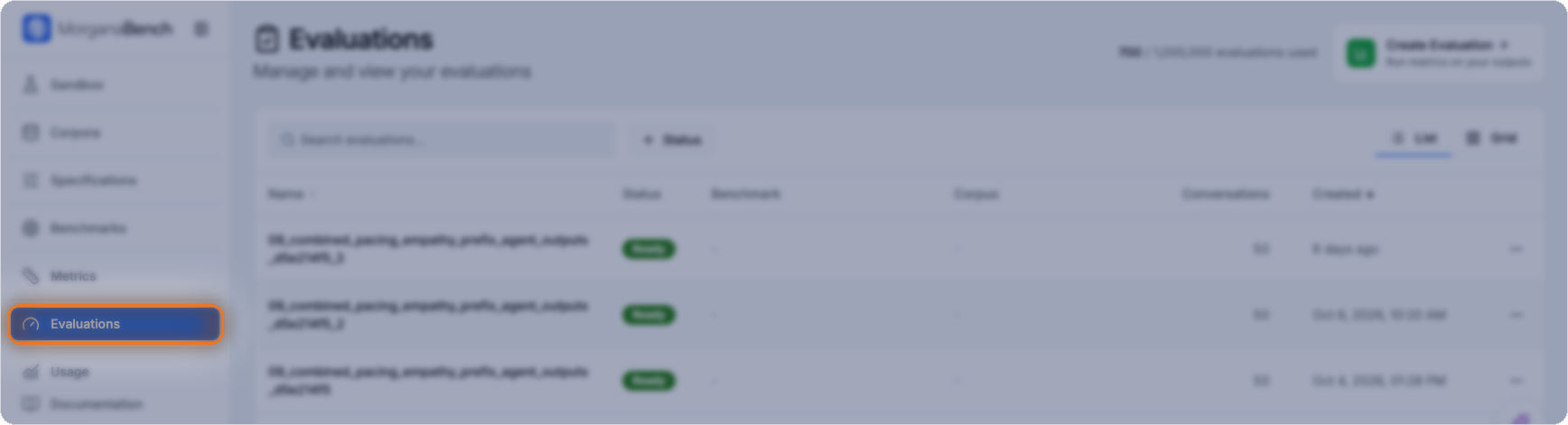
To create an evaluation, navigate to the Evaluations section.
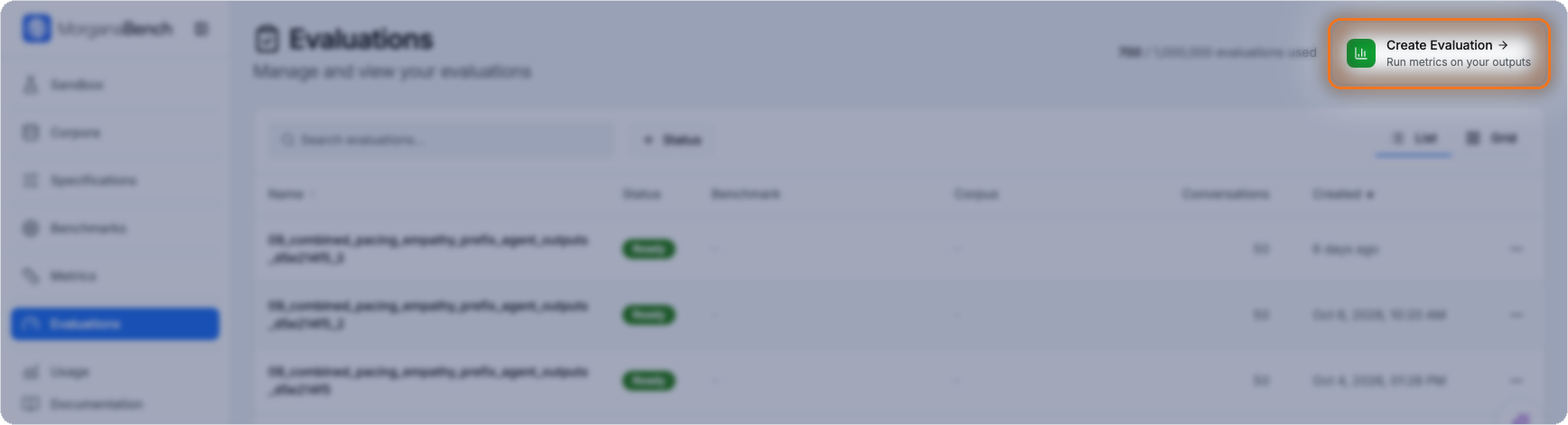
Next, click the Create Evaluation button in the top-right corner of the page.
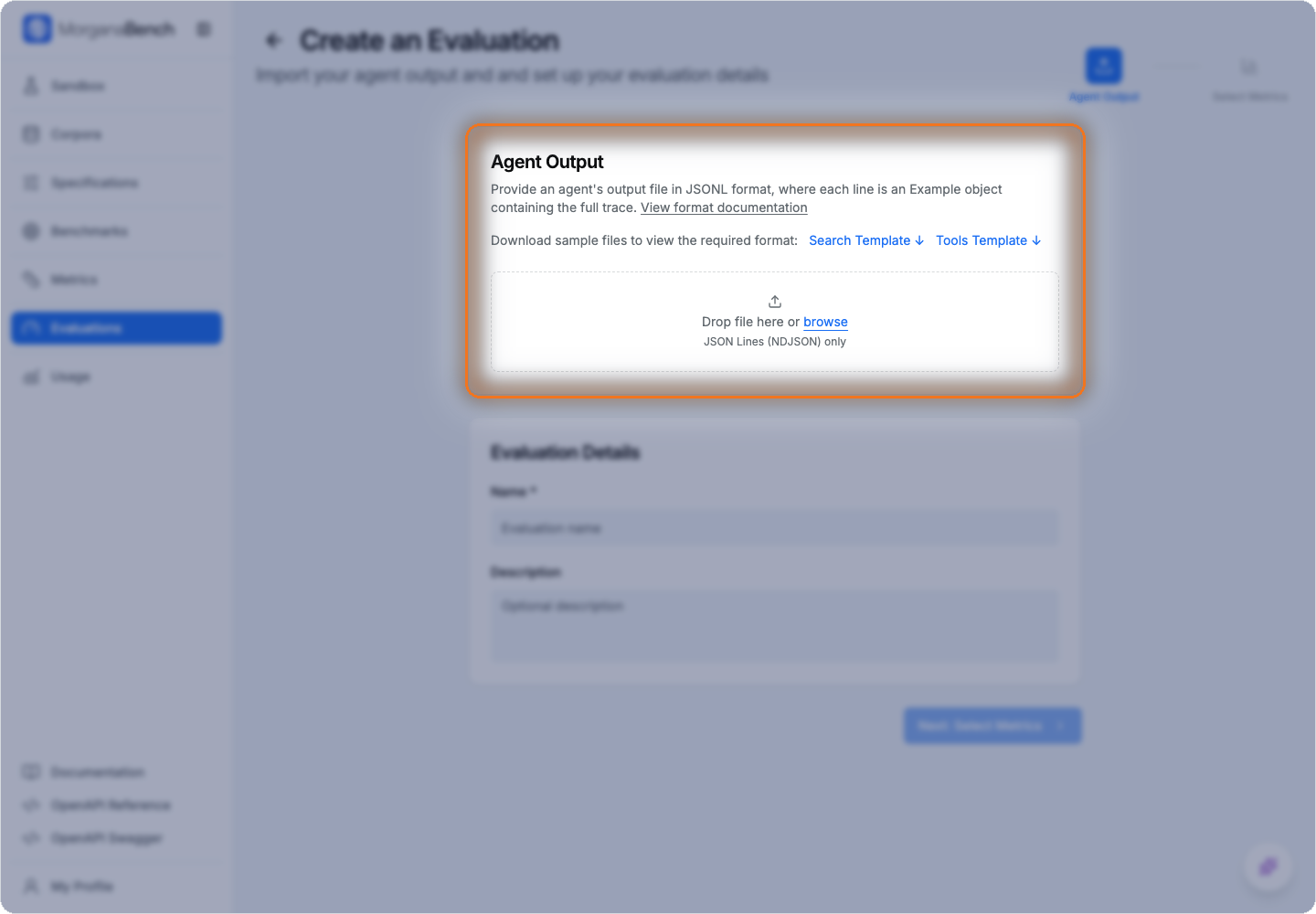
Use the Agent Output box to upload your executed benchmark JSONL file.
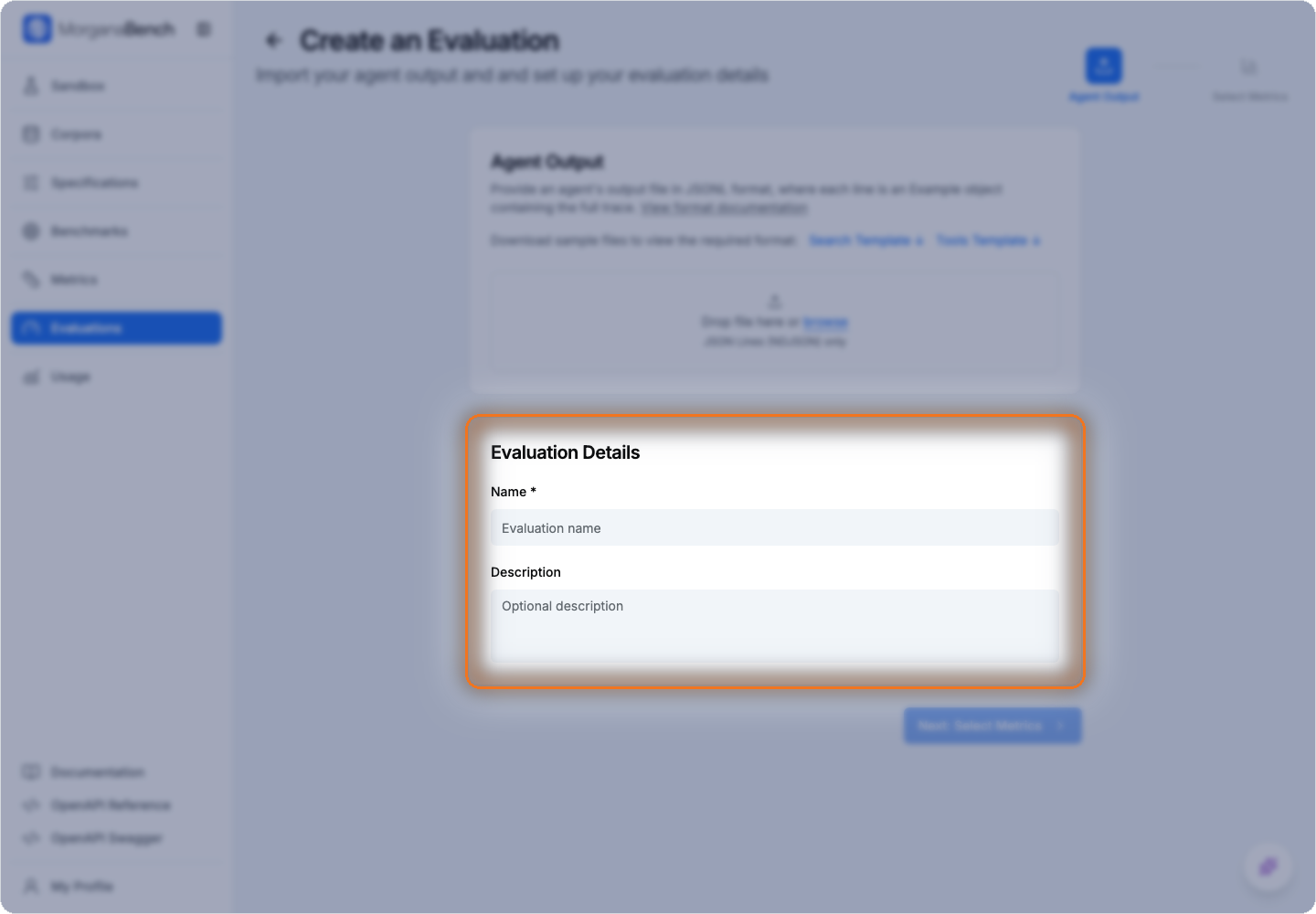
After uploading the file, choose a name for your evaluation below the Agent Output box. Type "Watson QA" in the Name box shown here:
Then click the Select metrics button at the bottom of the page to proceed to metric selection. Select "Ground truth alignment", which is our default recommended
correctness metric that compares the agent's response with the expected response:
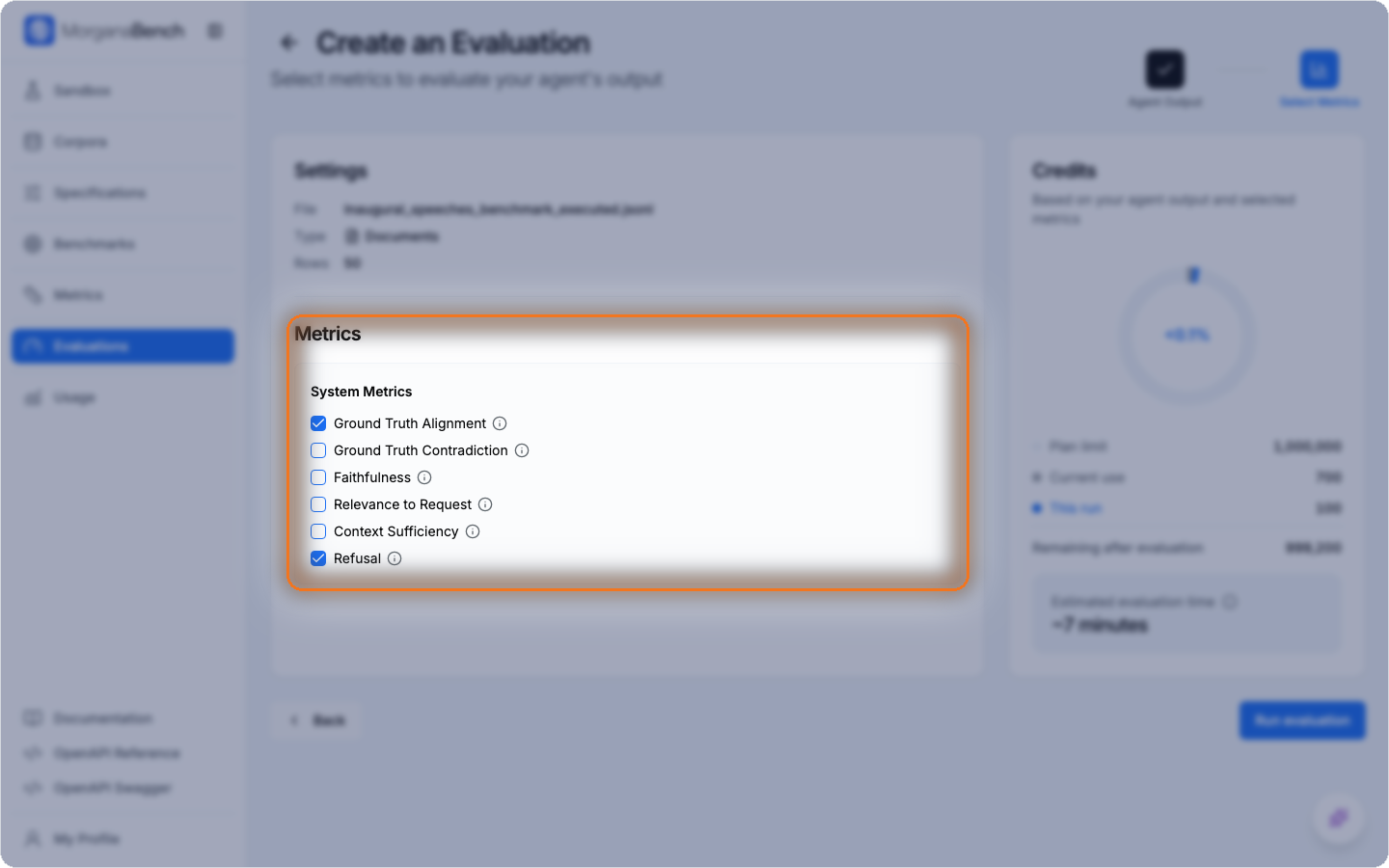
Next, click the "Run evaluation" button at the bottom of the page to begin the evaluation process. A progress bar will appear, allowing you to monitor the evaluation as it proceeds. When it is complete, the results will appear.
Inspect the results
When the evaluation is complete, you should see a screen with two panels. In the left panel, you can see the evaluation metadata, including the name "Watson QA" you chose:
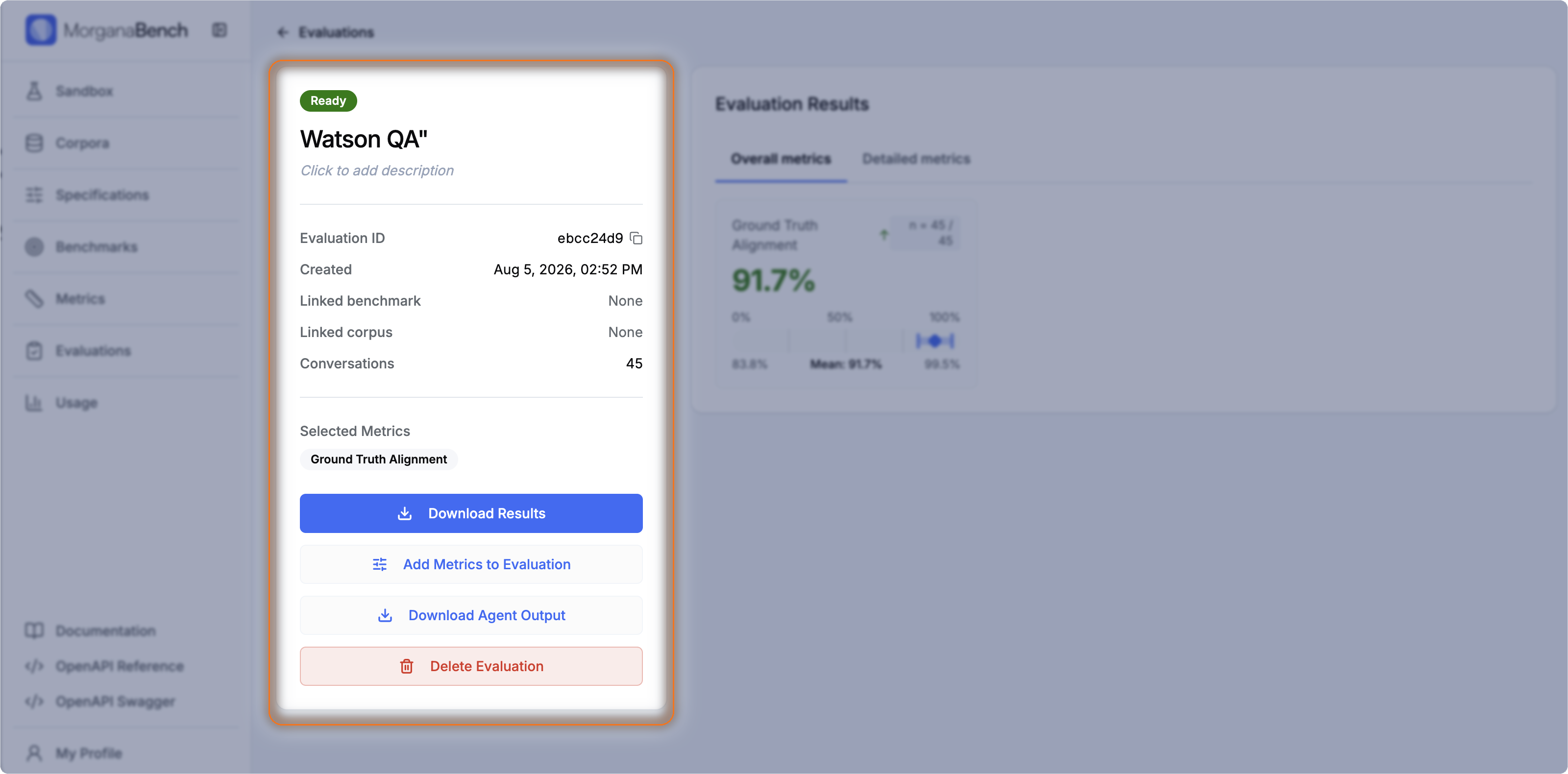
In the right panel, you should see the metrics computed by MorganaBench for the LlamaIndex agent:
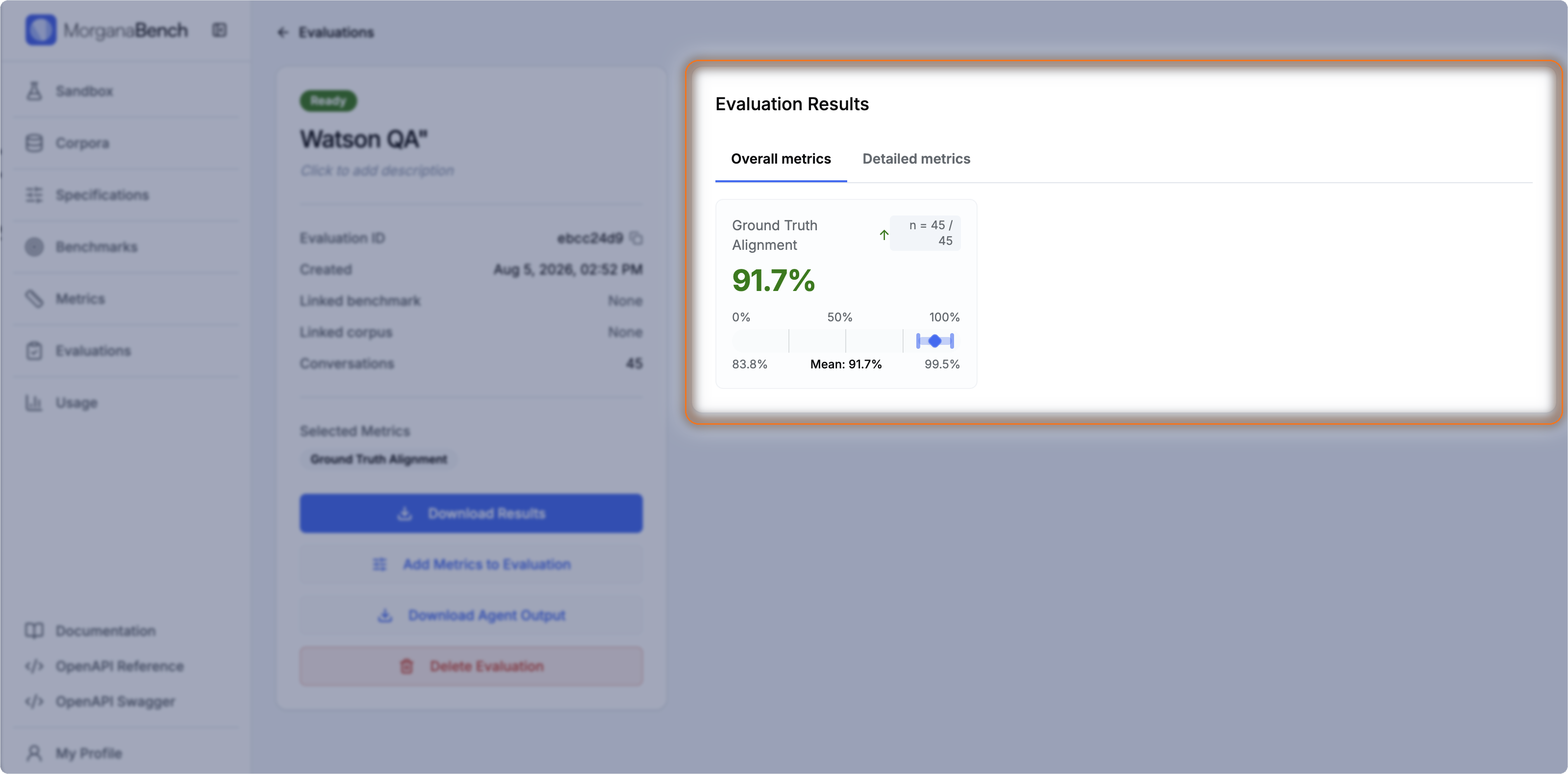 Evaluation results depend on the responses produced by the actual agent run, so they will not necessarily match the values shown here. This screenshot is one completed example: its correctness score is 91.7%, with a confidence interval from 83.8% to 99.5%.
Switch to the Case details tab to view scores for individual examples in the benchmark.
Use + Add filter to narrow the examples by metric score, for example, ground-truth alignment scores greater than or equal to 0.7
or between 0.5 and 0.7.
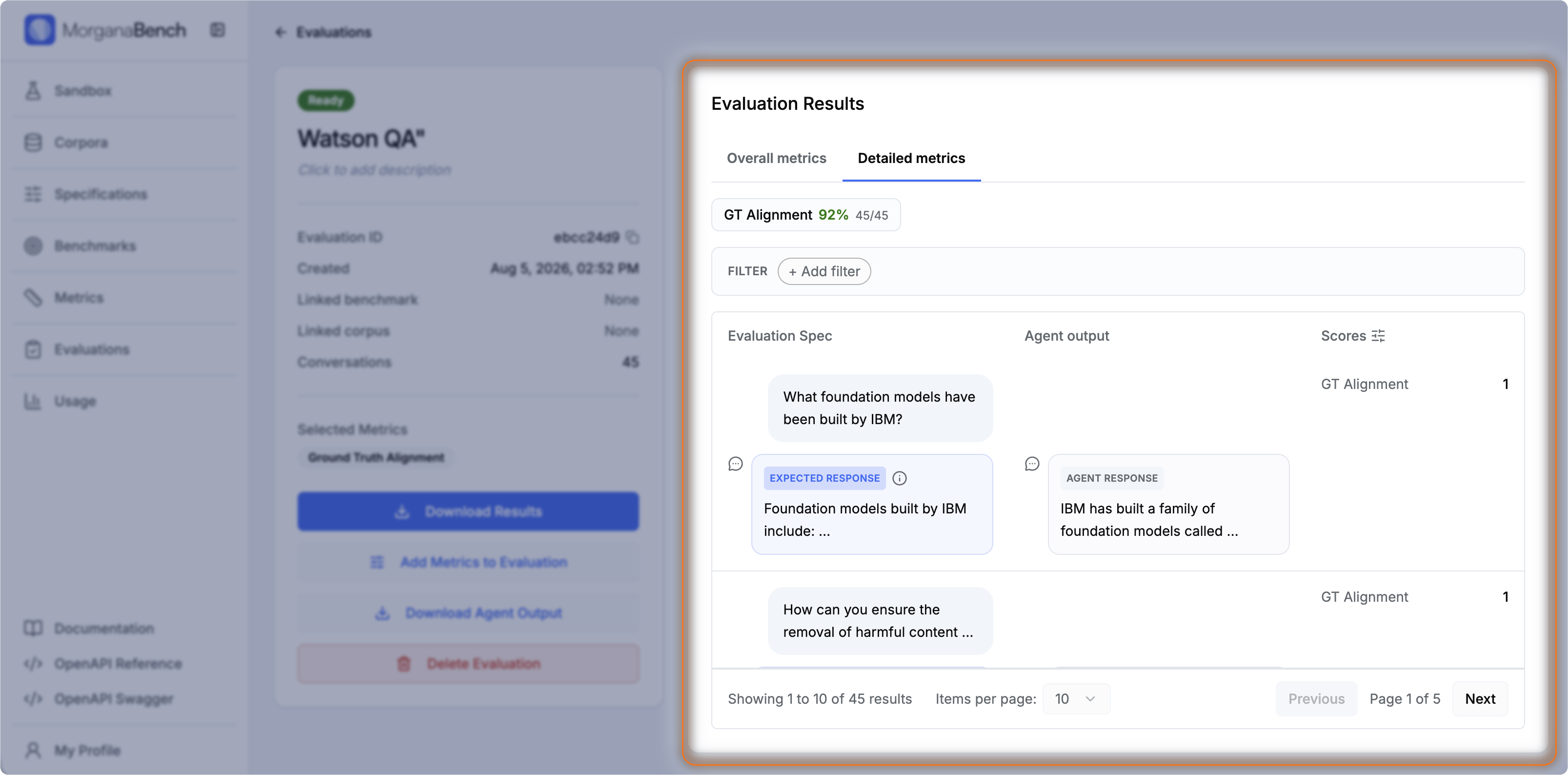 The screenshot shows the first two examples from this run, each with a ground-truth alignment score of 1. Your example scores will depend on your agent's responses. You can hover your mouse over a message, such as the
Expected response message in the screenshot above, to see its full contents.
Summary
You have learned how to use an externally supplied benchmark to evaluate an agent with MorganaBench. You have also learned how to use the MorganaBench SDK to produce files in a format that MorganaBench can consume.