Benchmarks
A benchmark is a set of generated test cases produced from a corpus and some guidance. Each case simulates a realistic user interaction, complete with expected answers or tool calls, that you can later use to evaluate an AI agent's performance.
The workflow is: you create a Corpus (your data), define Guidance (how the cases are generated — either a Specification of categories or a set of seed examples), then generate a Benchmark (the test set), and finally run an Evaluation against it. The benchmark is the artifact that bridges generation and evaluation.
Benchmark Modes
MorganaBench supports two benchmark modes, determined by the type of corpus you select:
| Mode | Description |
|---|---|
| Documents | Tests whether an agent retrieves the right documents and provides correct answers |
| Tools | Tests whether an agent picks the right tool with the correct parameters |
Creating a Benchmark
Navigate to Benchmarks in the sidebar and click Create Benchmark. The creation flow is a 3-step wizard:
Step 1: Settings
- Benchmark Details: enter a Name (required) and optional Description.
- Corpus: select an existing corpus in Ready status, or create a new one inline. The corpus type determines the benchmark mode (Documents or Tools).
- Guidance: choose how to guide generation — By Specification (categories and labels) or By Example Seed (More Like This). By Specification is preselected; By Example Seed is available for Documents corpora only.
Step 2: Guidance
Guidance is how you tell MorganaBench to generate the cases. This step shows the editor for the mode you chose in Step 1.
By Specification opens the specification editor, with the scenario description and its categories and labels on the left and a live Preview panel on the right (see Preview Mode below). It starts from the default specification for your corpus type. The Load control in the editor header switches to the Default Specification or to any specification saved in your Library; the adjoining Save stores your edits back to the Library as a reusable specification.
By Example Seed opens the seed editor instead, where you provide the example requests that the generated cases are modelled on — see More Like This.
Step 3: Generation
- Number of cases (or "requests" for Tools mode): how many test cases to generate.
- Max turns: the longest conversation the benchmark may contain (see Turns for an explanation of the turn distribution). Cannot exceed your organization's limit (4 by default; see Limits).
- A Generation Credits panel shows estimated cost and remaining quota.
Click Submit for Generation to start.
For a visual walkthrough with screenshots, see the Search Benchmarks by Specification or Search Benchmarks by Example use-case guides. For function-calling benchmarks, start with the tools corpus.
Preview Mode
Preview lets you generate a single turn before committing to a full benchmark run, which is useful for validating your specification and corpus combination without consuming quota.
In the Guidance step of the wizard, a Preview panel appears on the right side of the specification editor. Every category gets a dropdown: you pick exactly one label per category, and the case is generated with that label at probability 1 and the category's other labels at 0 — so the label combination is chosen, not sampled, and a preview shows you the one combination you picked rather than a representative slice of a full run. Click Generate Preview to produce it via streaming. You can generate multiple previews, navigate between them, and delete ones that aren't useful. Adjust the specification and preview again until satisfied, then proceed to Generation.
Processing Status
After submission, the benchmark moves through these statuses:
| Status | What's happening |
|---|---|
| Pending | Benchmark queued, waiting for a processing slot |
| Generating | Cases are being generated; progress percentage visible in the list |
| Ready | All cases generated successfully; benchmark available for download and evaluation |
| Failed | Generation encountered an error; see error details on the detail page |
During generation, the list page shows real-time progress as a percentage in the status badge.
Troubleshooting Failed Benchmarks
Common failure causes:
- Corpus not ready — the linked corpus is not in Ready status or has no indexed content
- Too many generation failures — over 70% of test case attempts failed (e.g. the specification and corpus are mismatched)
- Organization quota exceeded — lifetime test case limit reached (HTTP 429)
The error messages on the detail page describe what went wrong. If the corpus is the issue, verify its status on the Corpora page.
To end a generation early, use Stop Generation (see below).
When to contact your administrator
- A benchmark is stuck in Generating and won't progress, and Stop Generation doesn't resolve it
- You're hitting organization-level limits (quota, hourly rate limit)
- Generation failed with an unexpected error (no actionable message)
Stopping Generation
While a benchmark is Generating, its detail page offers Stop Generation. It ends the run and keeps the cases produced so far as a partial benchmark. You can download and use it like any other benchmark, but it has fewer cases than requested. No administrator is needed.
Benchmarks List
The main Benchmarks page shows all your benchmarks with filtering, sorting, and two view modes:
- List view: sortable columns
- Grid view: same information as cards
Toggle between views using the icon in the filter bar.
The filter bar provides:
- Search: filter by benchmark name
- Status filter: narrow to specific statuses (e.g. show only Ready or Failed)
- Type filter: narrow to Documents or Tools benchmarks
- Sort: sort by name, status, or creation date (column headers are clickable)
Benchmarks that are still generating show a progress percentage in their status badge.
Benchmark Detail Page
Once created, the detail page shows:
- Status with real-time progress (during generation)
- Editable name and description: click the pencil icon to edit inline
- Metadata: Benchmark ID, type (Documents/Tools), creation date, number of cases
- Linked Corpus: clickable link to the source corpus
- Guidance: open the read-only snapshot the benchmark was generated from — View specification, or View seed for a More Like This benchmark; a specification can be saved from there back to the Library
- Download: download the generated JSONL file (enabled only when Ready)
- Create Evaluation: start an evaluation from this benchmark (enabled only when Ready)
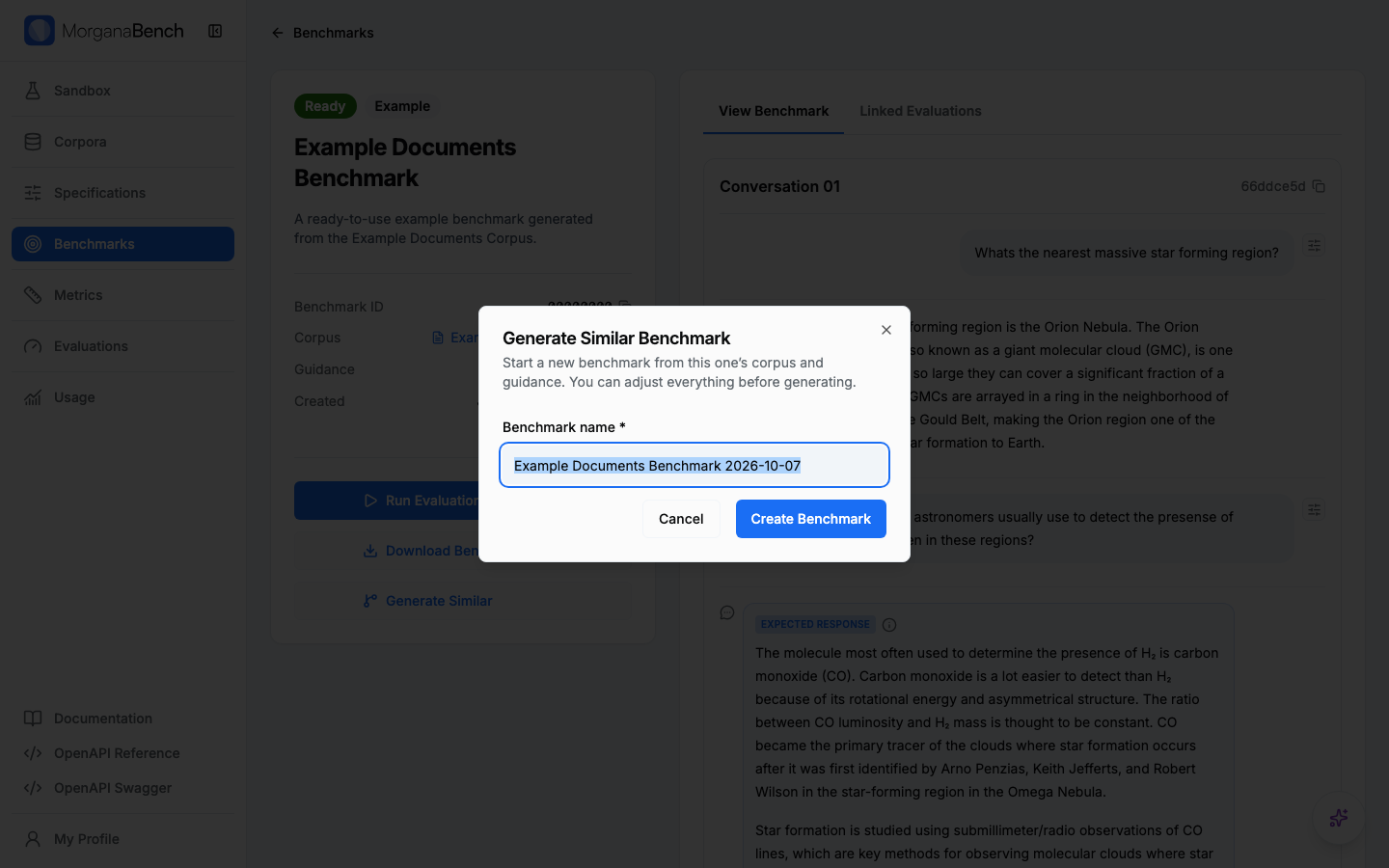
- Generate Similar: start a new benchmark from this one's corpus and guidance
- Linked Evaluations: table of all evaluations run against this benchmark
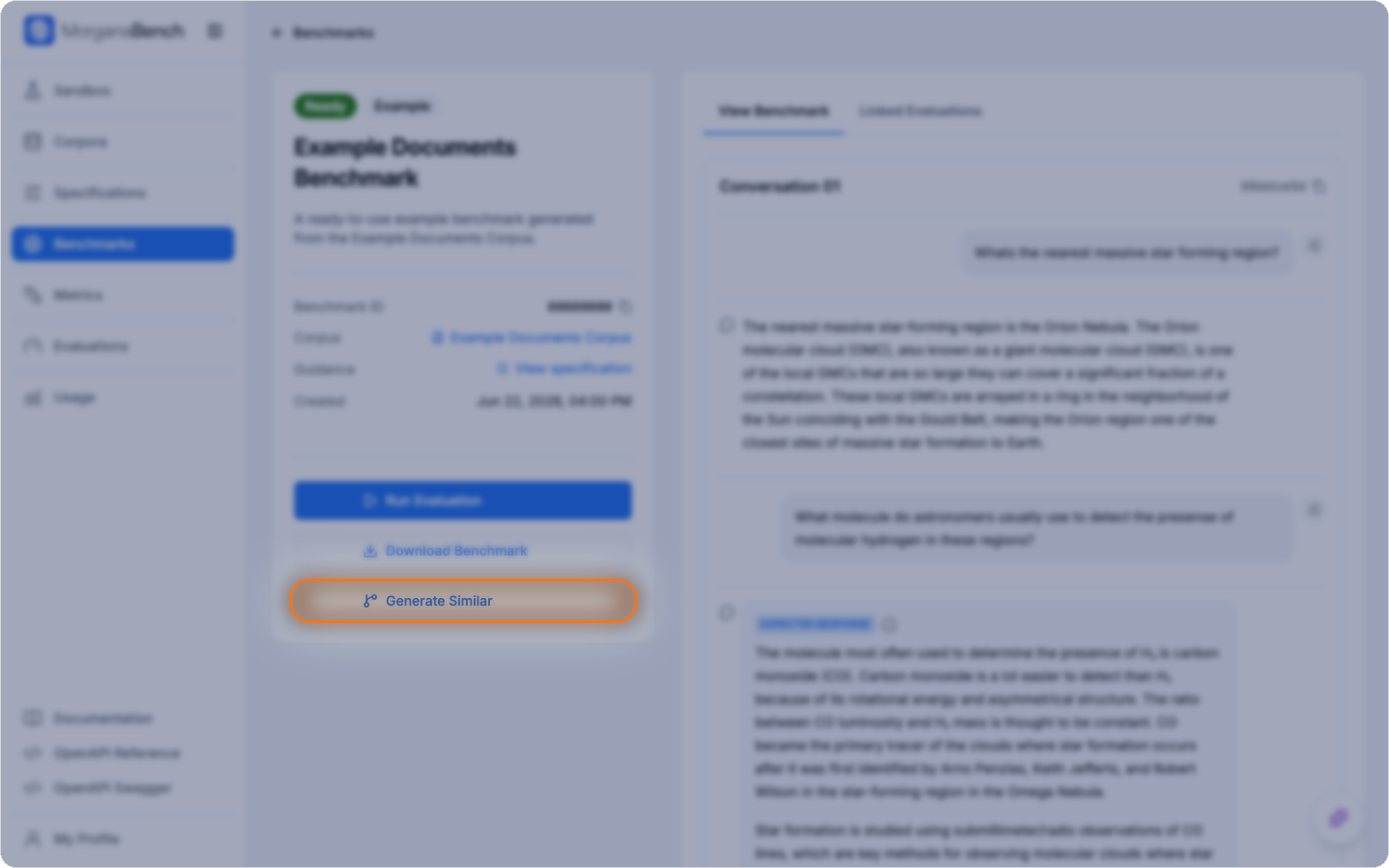
It asks for a name (pre-filled, editable) before creating the benchmark:
The Specification/Seed Details page offers the same action as Use in New Benchmark. See Specifications.
Expectation Cards
Each case on the detail page starts with its Input: the messages that the agent receives, with the user's messages on the right and the agent's earlier replies on the left. Below the input, the Expectations show what the agent should do. Each kind of expectation has its own card. A card appears only when the case has that expectation. The cards appear in this order:
| Card | What it shows |
|---|---|
| Tool Call | A tool the agent should call, with its parameters. For a test case where the agent should not use a tool, the card reads "No tool should be called." |
| Response Refusal | The agent should not give a complete answer to the request. |
| Response Claims | A list of statements that the agent's response should contain. |
| Response Compliance | A list of conditions that the agent's response must meet. |
| Expected Response or Example Response | The response of the case. Expected Response is the answer the agent should give. It shows when the case has a response expectation, also next to a tool call. Example Response is an example of a good response. It shows when the case has only an illustrative response, in a row below the other cards. It has the same blue color as the other cards, and its label tells it apart. |
Hover over the help icon of a card to read what the card means.
Downloading Results
Once a benchmark reaches Ready status, click the Download button on the detail page to get the generated file.
The output is a JSONL file (one JSON object per line). Each line represents one generated case and follows the MorganaBench SDK Example schema.
Deleting a Benchmark
On the detail page, click Delete Benchmark to permanently remove a benchmark and its generated data.
- Non-admin users can delete benchmarks in Ready or Failed status.
- Admins can delete benchmarks in any status, including ones still generating.
- Example benchmarks (pre-loaded samples) cannot be deleted.
Limits
| Limit | Value |
|---|---|
| Benchmark name | 255 characters max |
| Description | 1,000 characters max |
| Cases per benchmark | Minimum 1; no per-benchmark max, but counts against org quota |
| Organization lifetime quota | 10,000 cases (default; configurable by admin) |
| Benchmark creates per hour | 10 per organization |
| Max conversation turns | 4 (default; configurable by admin) |
Next Steps
Once your benchmark status is Ready, you can evaluate an agent against it: see Evaluations.
You can also generate benchmarks programmatically via the API or CLI: see the API reference or the CLI Guide.