Metrics
The gallery of the metrics your evaluations can use: the built-in system metrics, and Your Metrics, the custom LLM-judged metrics of your organization. See Metrics for what a metric measures and how scoring works.
Metrics Gallery
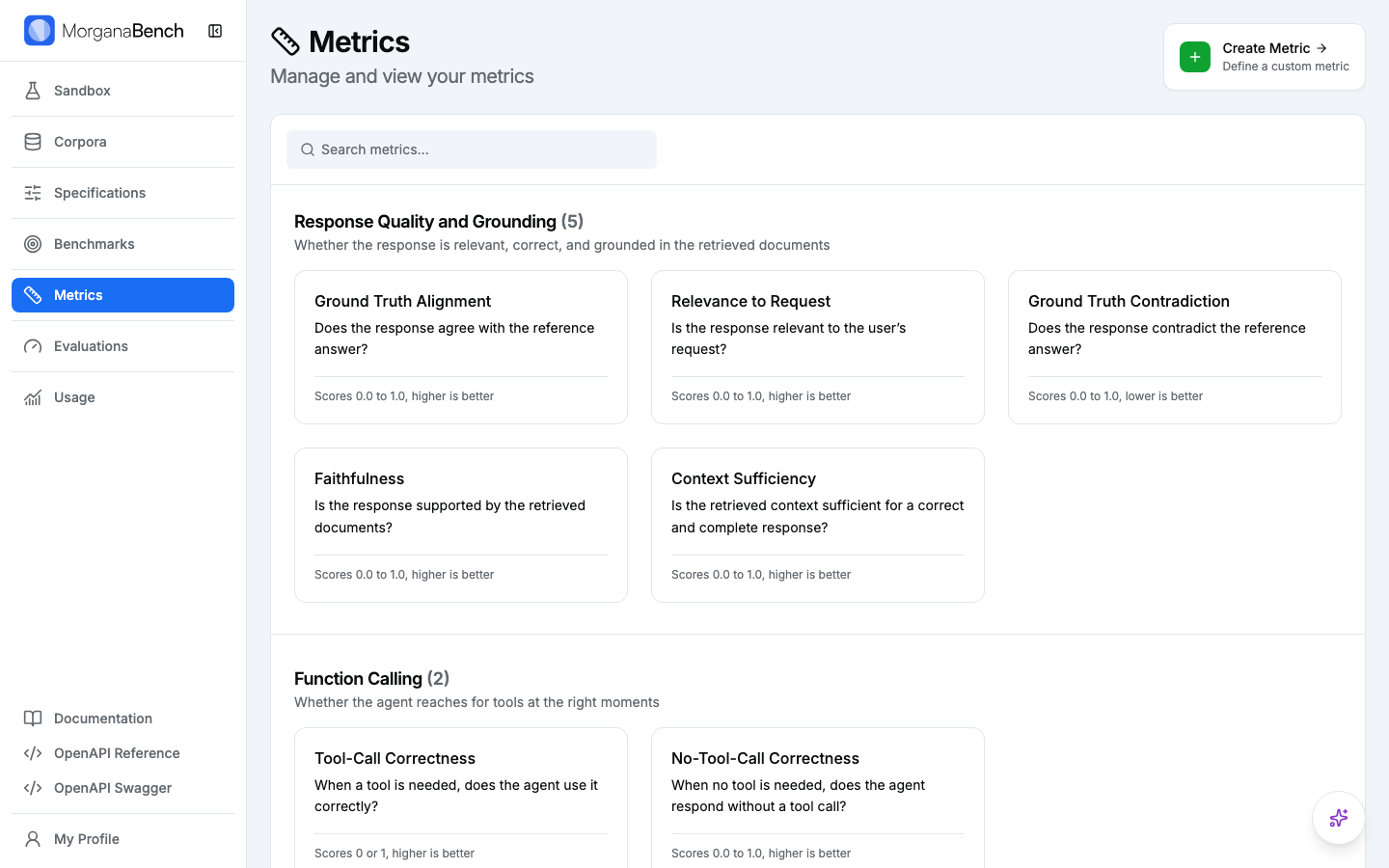
System metrics are grouped by category (response quality and grounding, function calling, guardrails). Your Metrics lists your organization's custom metrics.
Each card shows the metric's name, a short description, and its score type (e.g. Scores 0.0 to 1.0, higher is better). Select a card to open its detail page.
Metric Detail Page
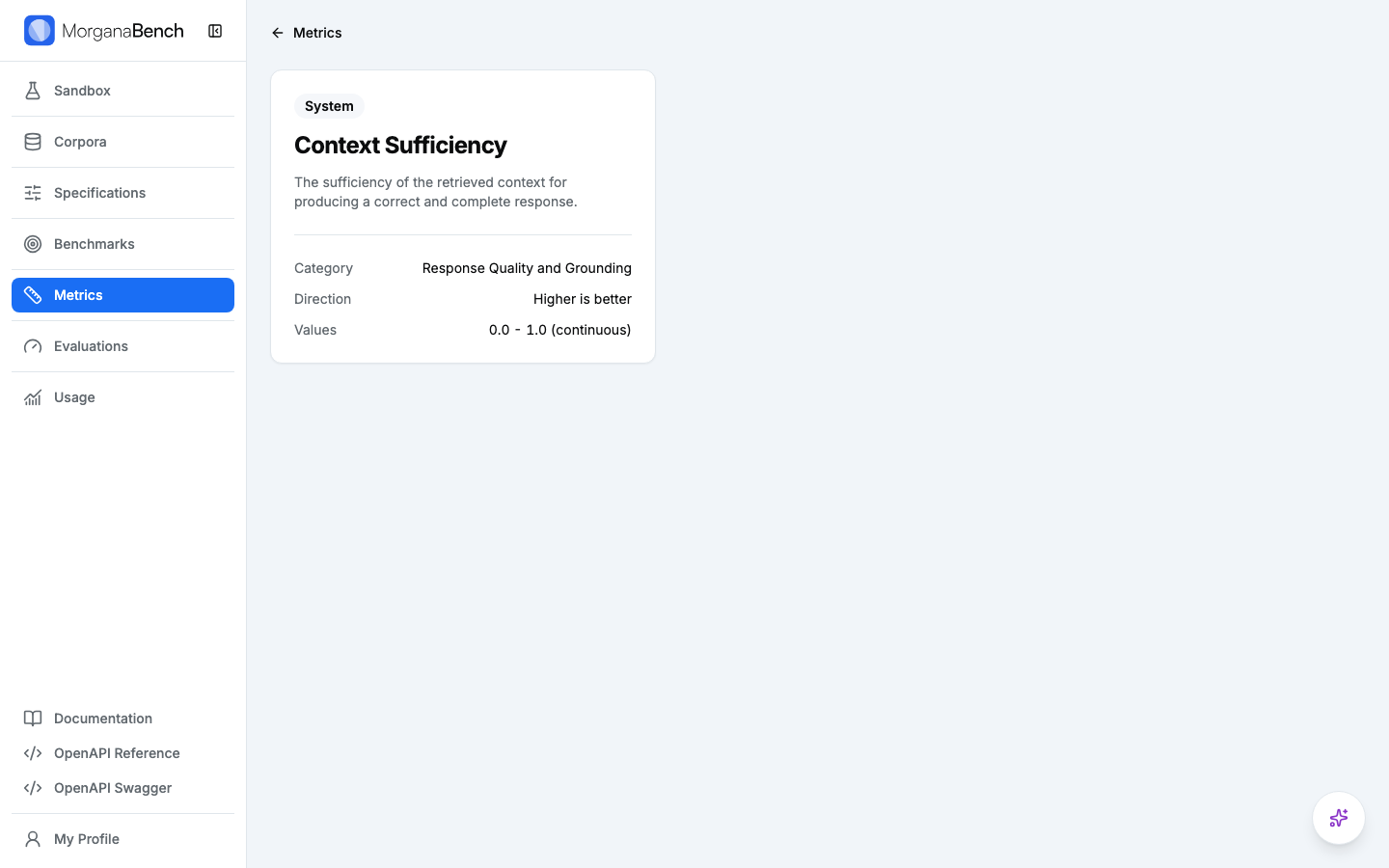
Shows the metric's category, direction (higher or lower is better), value range and description. A custom metric also shows its judge configuration: the scoring instructions and which parts of a case the judge sees. You can edit the description of your own custom metrics. The name and configuration can't be changed after creation.
Creating a Custom Metric
Select Create Metric in the gallery. Define a name, a description, the judge's scoring instructions, the direction and score type (binary or numeric scale), and which parts of each case the judge sees. Preview the metric on a few rows before saving. See Metrics.
Duplicating and Deleting
Duplicate is on the detail page of every custom metric, including the bundled example and deleted metrics. System metrics have no actions. It opens Create Metric pre-filled with the metric's name, description and configuration. Use it to change a name or configuration, which can't be edited after creation, or to make your own copy of the bundled example metric.
Delete is available for your own custom metrics, not for system metrics or the bundled example. Past evaluations keep the metrics they ran with, so deleting a metric doesn't change their numbers. A deleted metric no longer appears in the gallery. If a past evaluation used it, its detail page is still reachable from that evaluation, with a Deleted badge and a Restore button.