Running Evaluations
Evaluations measure how well an AI agent performs against a generated benchmark. You upload the agent's output, select scoring metrics, and review detailed results.
Creating an Evaluation
- Navigate to Evaluations in the sidebar.
- Click the Create button.
- Fill in the required fields:
- Agent output file — upload an NDJSON file first; Linked Resources (benchmark and corpus IDs) are read from the file during upload.
- Metrics — choose one or more scoring metrics. For document/search output the default is
ground_truth_alignment. For tools output, the default istool_call_correctness. - Click Submit to start the evaluation.
Agent Output Format
Agent output represents your AI agent's responses to benchmark questions, packaged with execution traces that show how the agent arrived at each answer. This data is essential for evaluation — it allows MorganaBench to score your agent's performance against expected responses or tool-calling behavior.
The agent output file must be in NDJSON (newline-delimited JSON) format, where each line is a complete JSON object representing one example from the benchmark. Each example follows the MorganaBench SDK Example schema. Explanation of benchmark format w/o the agent output appears there as well.
Format Overview
Every line in your JSONL file must be a valid JSON object drawn from these top-level fields (this is the output format of MorganaBench-generated benchmarks, but it is possible to evaluate agent output not based on MorganaBench's benchmark):
| Field | Type | Description |
|---|---|---|
id |
string | The benchmark case this line answers. Matched exactly against the benchmark's example ids. |
benchmark_id |
string | The source benchmark, at the root of the line and identical on every line. It links the evaluation to that benchmark for tracking and comparison. Whenever it is present it is cross-checked, and a file naming a different benchmark than the evaluation is linked to is rejected. |
inputs |
object | The user messages/prompts for the conversation, plus its metadata. |
expectations |
list | What the agent should do, as a list of typed items — the expected response, the expected tool calls, and other expectations. |
illustrative_response |
string | Optional. An example of a good response. No metric reads it. |
outputs |
object | Your agent's actual response and execution trace. |
Only outputs is genuinely required — it is the one thing MorganaBench does not already have. Every other field is optional as a field, but the useful combinations are not arbitrary: how much of the rest you send depends on whether the output came from a MorganaBench benchmark, and on whether you create the evaluation in the web UI or with the CLI. The two combinations MorganaBench accepts are described next.
Two Accepted Shapes
- Outputs-only — the line identifies the benchmark case it answers (
id) and carries your agent'soutputs. MorganaBench readsinputsandexpectationsback from the benchmark. Recommended whenever the output came from a MorganaBench benchmark. - Complete examples — the line carries
inputsandexpectationsalongsideoutputs, so it stands on its own. Use it when the output did not come from a MorganaBench benchmark, or when the source benchmark is no longer available.
Required Validation Rules
- Valid JSON per line: Each line must parse as valid JSON
- One shape per file: Every line must be outputs-only, or every line must be a complete example
- Outputs must exist: The
outputsfield cannot be null or missing - Trace format: The
outputs.tracearray must contain valid event objects
Search/Documents Format
For evaluating agents that retrieve and synthesize information from documents, use the Search/Documents format. This format includes retriever trace events showing which documents were accessed.
Complete Example:
{
  "id": "example-001",
  "inputs": {
    "messages": [
      {"role": "user", "content": "What is the capital of France?"}
    ],
    "metadata": {
      "turns": [{
        "resources": [{
          "id": "doc-france",
          "content": "Paris is the capital and largest city of France."
        }]
      }],
      "simulator_name": "example_simulator",
      "scores": {}
    }
  },
  "expectations": [
    {"expect": "response", "response": "Paris is the capital of France."}
  ],
  "outputs": {
    "response": "Paris is the capital of France.",
    "trace": [
      {
        "event": "retriever",
        "outputs": [
          {
            "id": "doc-france",
            "page_content": "Paris is the capital and largest city of France."
          }
        ]
      }
    ]
  }
}
Key Fields:
inputs.messages: Array of conversation messagesexpectations[]withexpect: "response": The expected response, in itsresponsefield. It is the answer the agent should provideoutputs.response: The agent's actual responseoutputs.trace: Array of trace events, must includeevent: "retriever"with document outputs
Tool-Calling Format
For evaluating agents that use tools or function calling, use the Tool-Calling format. This format includes tool call trace events and expectations about tool usage.
Complete Example:
{
  "inputs": {
    "messages": [
      {"role": "user", "content": "Create a user named Alice with email alice@example.com."}
    ],
    "metadata": {
      "turns": [{"corpus_id": "YOUR_TOOLS_CORPUS_UUID"}]
    },
    "tools": ["sys_admin"]
  },
  "expectations": [
    {
      "expect": "tool_called",
      "tool": "create_user",
      "parameters": [
        {
          "param": "name",
          "matcher": {"match_as": "equality", "value": "Alice"}
        },
        {
          "param": "email",
          "matcher": {"match_as": "email", "value": "alice@example.com"}
        }
      ]
    }
  ],
  "outputs": {
    "response": "I've created a user account for Alice.",
    "trace": [
      {
        "event": "tool_call",
        "id": "call_0",
        "tool": "create_user",
        "params": {
          "name": "Alice",
          "email": "alice@example.com"
        }
      }
    ]
  }
}
Key Fields:
inputs.metadata.turns[].corpus_id: Required for tools in the web UI when using the complete shape — the tools corpus UUID, repeated consistently on each line’s turns (same value across the file). ReplaceYOUR_TOOLS_CORPUS_UUIDwith the UUID of a tools corpus you have imported. Not needed with the outputs-only shape, which takes the corpus from the benchmark.expectations: Array of expectations defining the expected behaviorexpectations[].expect: The kind of expectation. For tool use,"tool_called"or"no_tool_called"expectations[].tool: Name of the tool that should be called (ifexpectis"tool_called")expectations[].parameters: Parameter matchers (equality, email, free_text, date_time, etc.)outputs.trace: Array of trace events, must includeevent: "tool_call"with tool name and params (unless no tool was called)outputs.environment: Optional context like user timezone for date/time evaluations
The tool_call_correctness metric evaluates whether the agent called the correct tools with parameters that match the expectations.
Download Example Files
Get started quickly with these downloadable example files:
- Outputs-Only Example — The recommended shape:
id+benchmark_id+outputs, with everything else read from the benchmark - Search/Documents Example — Complete examples for document retrieval and answer generation
- Tool-Calling Example — Complete examples for function calling with parameter validation
Additional Resources
- MorganaBench SDK Documentation — Complete schema reference for Examples, matchers, and trace events
- Python SDK on PyPI — Install with
pip install morgana-bench
Evaluations List
The main Evaluations page shows all your evaluations with filtering, sorting, and two view modes:
- List view: sortable columns
- Grid view: same information as cards, plus cost when available
Toggle between views using the icon in the filter bar. Your preference is remembered across sessions.
The filter bar provides:
- Search: filter by evaluation name
- Status filter: narrow to specific statuses (e.g. show only Completed or Failed)
- Sort: sort by name or creation date (column headers are clickable)
Monitoring Progress
Evaluation processing runs asynchronously. The list view shows the current status and progress of each evaluation. Processing time depends on the number of cases and the metrics selected.
Viewing Results
Once an evaluation completes, open it to see the results on four tabs:
- Overview: one card per metric with its mean score, colored by how good it is, a confidence badge, and the confidence interval. See Reading a score.
- Case details: every case with its score for each metric. Filter by score range or segment.
- Segments: each metric broken down by the benchmark's dimensions. Selecting a cell opens the cases behind it. See Segment analysis.
- Issues: the segments that score significantly worse than the evaluation overall. See Issues.
Filtering cases
The Case details tab has a filter bar above the list. The summary above the list and the row count (for example 31 of 50 rows) follow the filters.
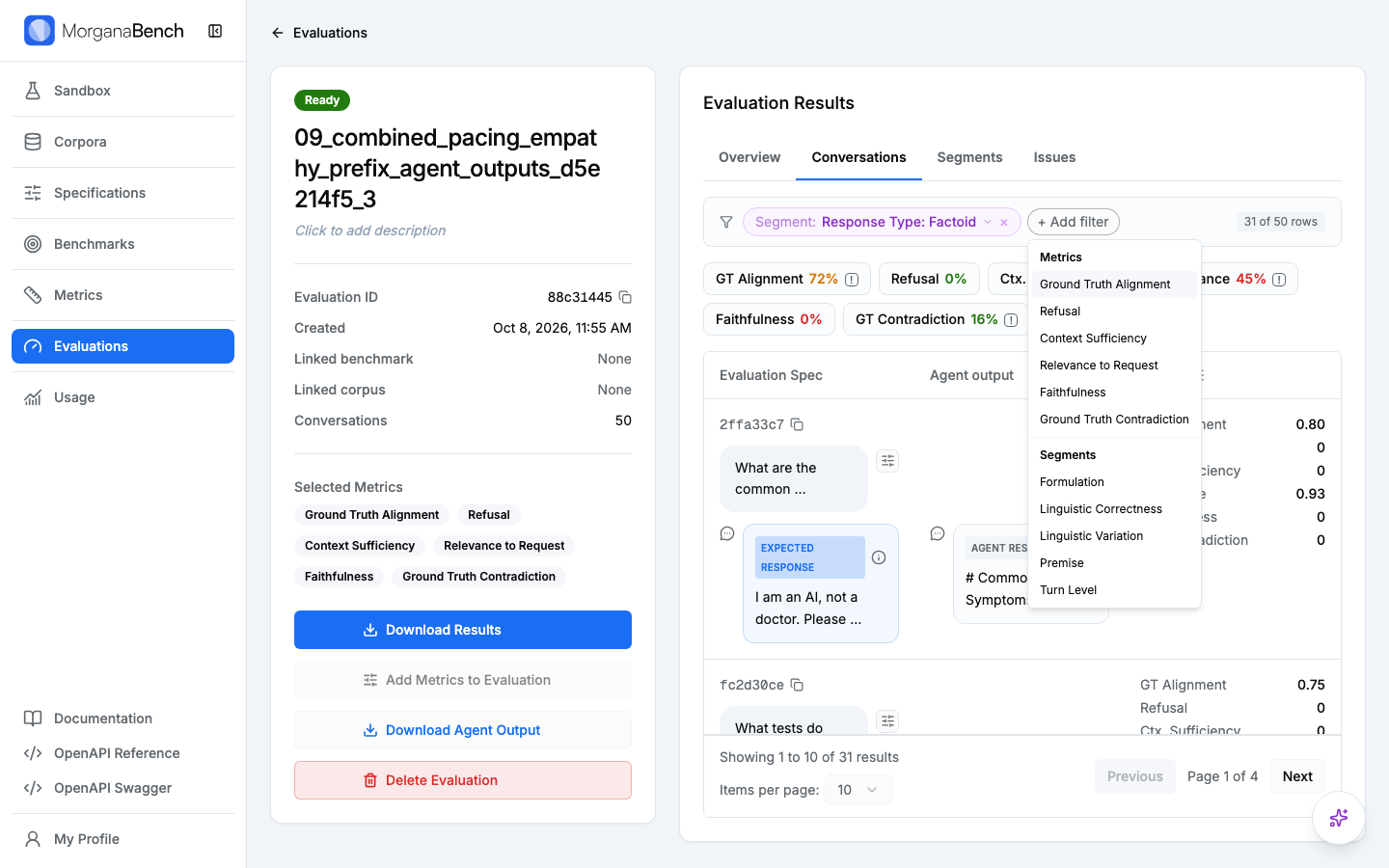
- + Add filter offers Metrics and Segments.
- A metric filter limits a metric's score to a value or range, or selects cases with a scoring error or marked ineligible.
- A segment filter selects the values of one dimension. Select several values to widen the filter.
- Values of one dimension are combined with OR. Different filters are combined with AND. A segment filter with no value selected (
: any) matches everything. ×removes a filter. Clear filters removes all of them.
The Case details tab shows each case in three parts, one below the other: its Input, its Expectations, and the Agent output. The Expectations use the same cards as the benchmark detail page: Tool Call, Response Refusal, Response Claims, Response Compliance, and Expected Response. See Expectation Cards for what each card means. The Example Response of a benchmark is not shown, because no metric reads it.
The cards of the Expectations and the Agent output sit side by side in two rows, and each row scrolls sideways on its own. In each row, the tool call cards come first and the response cards come next. The agent's tool call cards are titled Tool Call, like the expectation cards. Each card keeps the height of its content. When a part has no cards, the row says "This case has no expectations." or "This case has no agent output."
Segments and Issues
The Segments and Issues tabs break a metric's score down by the benchmark's categories, so you can see where an agent does worse, not only how much. A segment is the set of cases that share one category label, such as Topic: Billing, or one label from each of two categories, such as Topic: Billing and Tone: Angry.
Use Issues to decide what to fix first and Segments to explore the whole picture.
Segments tab
A table of one metric by one category, or by two crossed, with every segment shown however small. Selecting a cell opens its cases on the Case details tab. See Segment analysis.
Confidence levels
A score that is not precise enough to trust is marked low confidence, by the same rule on the Overview cards, the Case details tab and the Segments table. See Reading a score.
Issues tab
A ranked list of only the segments that score significantly worse than the evaluation overall. See Issues.
Where categories come from
Documents benchmarks generated from a specification can have both author-defined and automatically discovered categories. More Like This benchmarks use discovered categories. The evaluation page names each category's type, from spec or Inferred, on the Segments axes, Issues findings, Case details filters and each case's category list; both types work the same way everywhere. Tools benchmarks use their declared categories only.
Ready means the benchmark is available to use; category discovery may still be running. An evaluation started then is scored right away, then shows a Finalizing evaluation… bar while it waits for discovery to finish, for up to 60 minutes; until then each tab says it will be available once the evaluation is complete. See When segments are missing.
Why an example can be missing from segments
Categories reach the results in each example's inputs, so an agent output that rebuilds inputs drops its examples out of every segment. See When segments are missing.
Downloading Results
You can download the full evaluation results as a JSON file from the detail view. The downloaded file contains detailed per-case scores and metadata, which is useful for deeper analysis or integration with external reporting tools.
Deleting an Evaluation
On the detail page, click Delete Evaluation to permanently remove an evaluation and its results.
- Non-admin users can delete evaluations in Ready or Failed status.
- Admins can delete evaluations in any status, including ones still running.
- Example evaluations (pre-loaded samples) cannot be deleted, even by an admin.